AI Integration (MCP Server)
 AI Integration is available in the Pro edition.
Use AI assistants to read and modify Flying Logic documents through natural language.

What Is the MCP Server?
Flying Logic includes a built-in Model Context Protocol (MCP) server. MCP is an open standard that lets AI assistants — such as Claude Desktop — connect directly to applications and interact with their data. When the MCP server is running, a connected AI assistant can read and modify your open Flying Logic documents through natural language, without you needing to write scripts yourself.
Everything the AI assistant can do is backed by Flying Logic's scripting API. For the full list of available operations, see the Flying Logic Scripting Guide.
Enabling the MCP Server
The MCP server is configured in the MCP Server Options section of the Preferences dialog. Open Preferences with Edit ➡ Preferences… (Windows/Linux) or Flying Logic ➡ Preferences (Mac).
Check Enable MCP Server to start the server. Flying Logic starts the server automatically on launch while this setting is enabled.
See MCP Server Options for descriptions of all the available settings.
Connecting an AI Assistant
Automated Setup (Recommended)
The MCP Server Options preferences include a list of AI assistants for which Flying Logic provides one-click setup. The list currently includes:
- Claude Desktop
- Claude Code (CLI)
- VS Code (Copilot Chat)
- GitHub Copilot (CLI)
- Cursor
- Devin Desktop
- Codex CLI (ChatGPT)
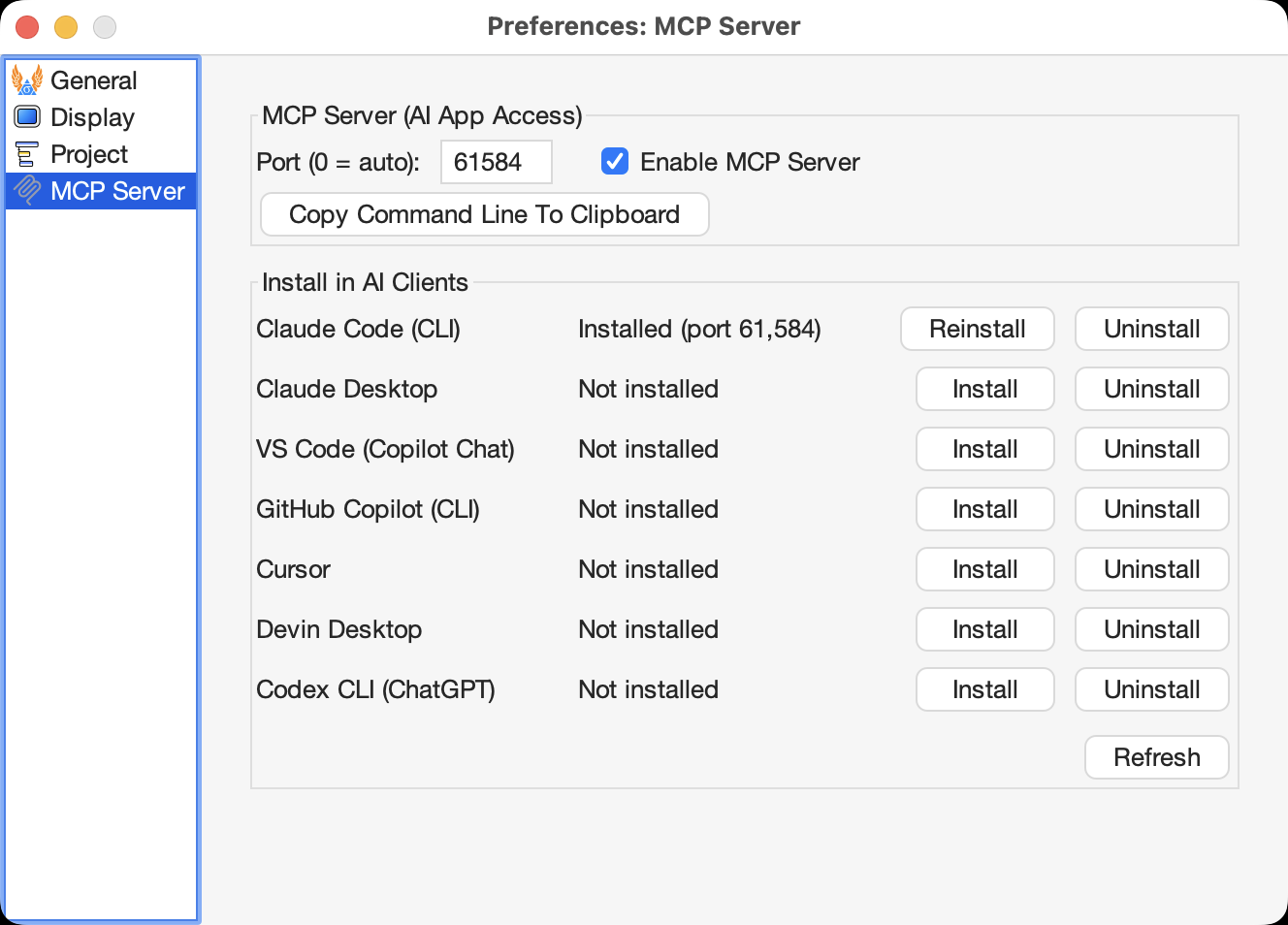
Each row shows the AI's name, its current installation status (with the configured port number shown when installed), and Install/Reinstall and Uninstall buttons. A Refresh button at the bottom updates the status of all rows.
To set up one of these clients:
-
In Flying Logic's Preferences, go to MCP Server Options and make sure Enable MCP Server is checked.
-
Find your AI assistant in the list and click Install. Flying Logic writes the necessary configuration entry directly into the client's config file.
-
Restart the AI assistant. When the connection is successful, the assistant will have access to Flying Logic tools.
-
To verify the connection, ask the AI: "What Flying Logic documents are currently open?"
Manual Setup
For AI clients not in the automated list, you can configure them manually using the command line that Flying Logic generates.
-
In Flying Logic's Preferences, go to MCP Server Options and make sure Enable MCP Server is checked.
-
Click Copy Command Line To Clipboard. This copies the command and arguments needed to launch the MCP bridge for your platform.
-
Open your AI client's MCP configuration file and add a
flying-logicentry. The exact format varies by client, but most use a JSON structure like this — paste the copied command as the"command"value and any remaining arguments into"args":{ "mcpServers": { "flying-logic": { "command": "/path/to/FlyingLogicApp", "args": ["--mcp=PORT"] } } }The actual path and port will reflect your installation and the port shown in Preferences.
-
Restart the AI client and verify the connection by asking: "What Flying Logic documents are currently open?"
What the AI Can Do
Once connected, the AI assistant can:
- Read documents — query element titles, annotations, classes, confidence values, and user-defined attributes.
- Modify documents — add entities, draw edges, change titles and annotations, update confidence values, and assign classes.
- Manage UDAs — read and write user-defined attributes on elements and on the document itself.
- Run scripts — execute arbitrary Flying Logic scripts.
- Export — export documents to PDF, PNG, SVG, Mermaid, or other supported formats.
- Manage project data — read and set task effort, dates, and resources when Project Management is enabled.
The AI works through natural language prompts — you do not need to write scripts yourself. For example: "Add a Goal entity called 'Increase Revenue' and connect the existing 'Improve Product Quality' entity to it."
Privacy and Security Notes
When the MCP server is enabled, a connected AI assistant can read all content in your open Flying Logic documents, including titles, annotations, and user-defined attributes. Only enable the server and connect AI tools that you trust with your document content.
Flying Logic's MCP server only accepts stdio connections from the local machine. It is not accessible from other computers on your network.
Troubleshooting
The AI assistant cannot connect. : First, fully quit and relaunch the AI assistant (see below — closing the window is not enough on most platforms). Make sure Enable MCP Server is checked in Flying Logic's Preferences and that Flying Logic is running. If you configured the client manually, verify that the command and port in the client's configuration exactly match what is shown in Preferences. Try clicking Reinstall in the client list if the client is listed there.
Configuration changes don't take effect after restarting the AI assistant. : Most AI desktop applications continue running in the background after their window is closed, and only read their configuration at process startup. A full quit and cold relaunch is required:
- Windows (Claude Desktop): right-click the Claude icon in the system tray (click ^ near the clock to show hidden icons) and choose Quit, or choose File ➡ Exit from within the Claude window. If Claude reappears instantly when you relaunch, it never actually exited.
- macOS (Claude Desktop): use Claude ➡ Quit Claude (⌘Q). Closing the window leaves the app running.
- Other AI clients: check their documentation for how to fully exit.
"Server not running" is shown in Preferences.
: Restart Flying Logic. If the problem persists, try changing the Port to a different value (or set it to 0 for automatic selection) and restart.
The AI can connect but reports no documents are open.
: Make sure at least one .xlogic document is open in Flying Logic.
Commands from the AI have no visible effect. : Check Flying Logic's scripting console (Edit ➡ Run Script ➡ Show Console) for error messages.
How to find Claude Desktop's connection logs.
: Claude Desktop writes MCP logs to the logs folder next to its configuration file. The file mcp.log records config parsing and server startup for all servers; mcp-server-flying-logic.log records the Flying Logic bridge's output. If no new entries appear in these logs after relaunching Claude, the app did not fully exit before restarting. To open the config file location directly, go to Settings ➡ Extensions ➡ Edit Config in Claude Desktop.